 Alembic
The assistant for company documents
An assistant that works on your company's documents, not on the web. You put them in a space, ask the way you would ask a colleague, and every answer tells you which document it came from. If the information is not there, it tells you so.
What's inside
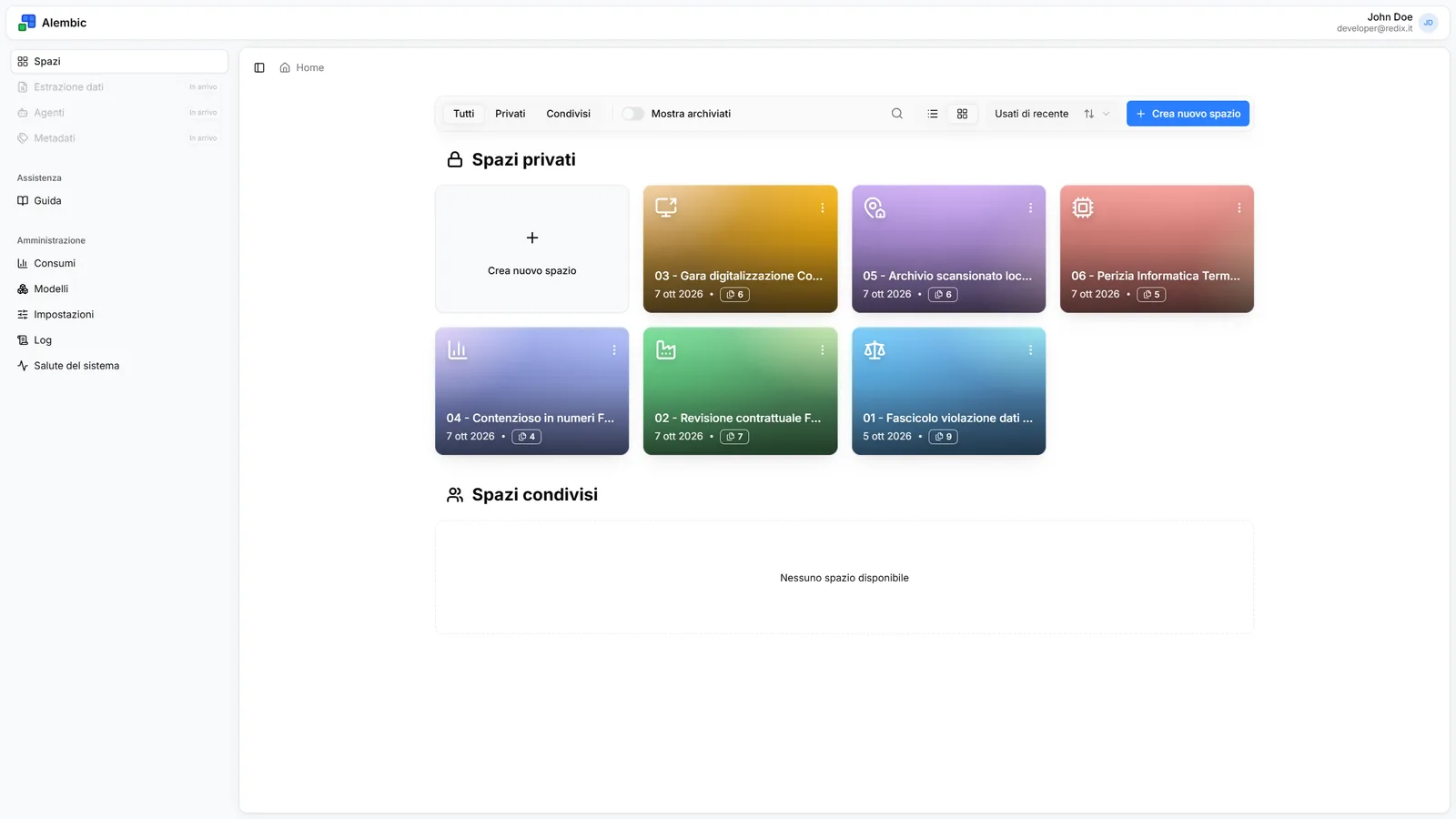
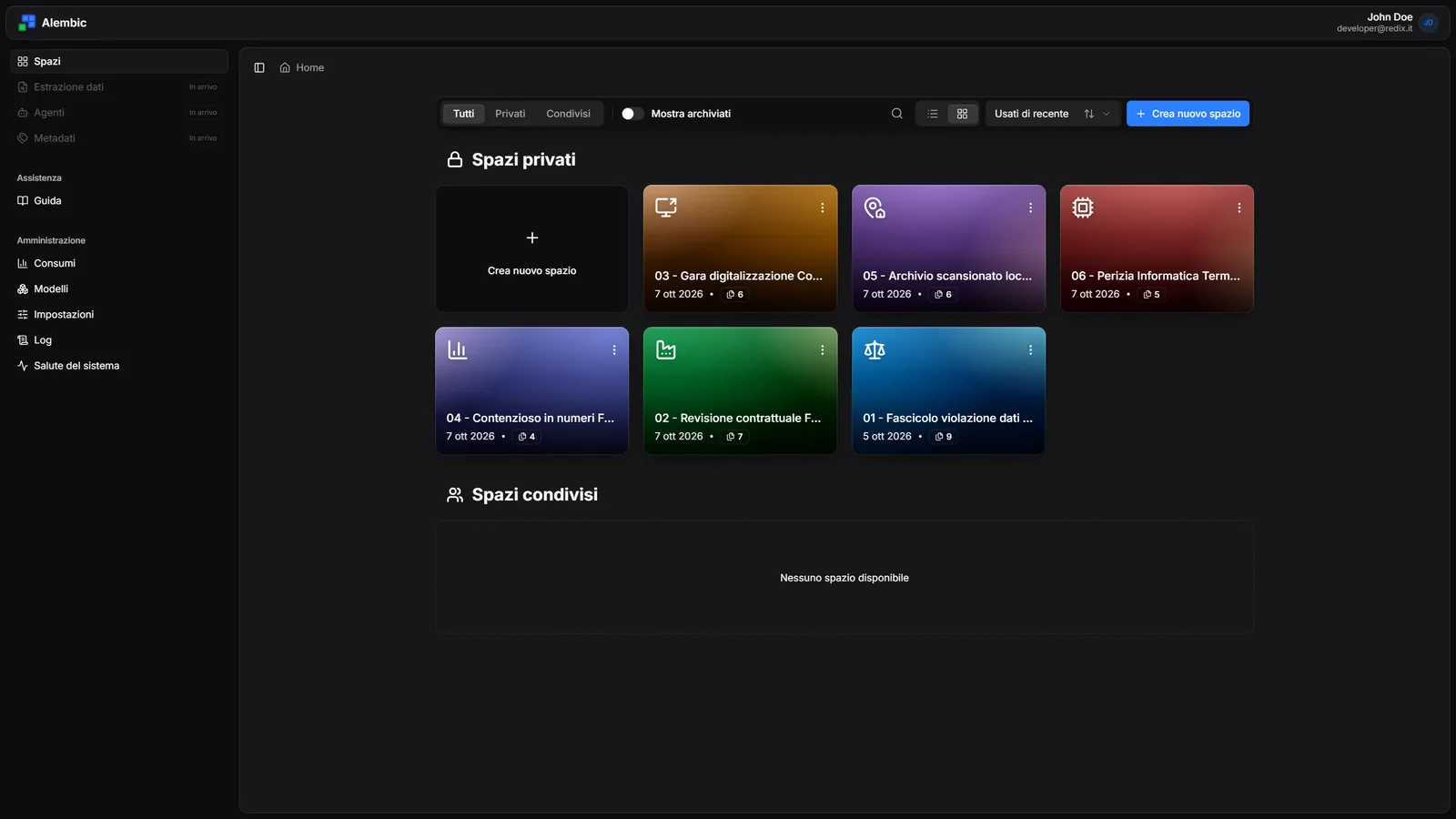
A space holds documents, folders and conversations, and the assistant sees only that. It can be private, shared with people or groups, or open to everyone.
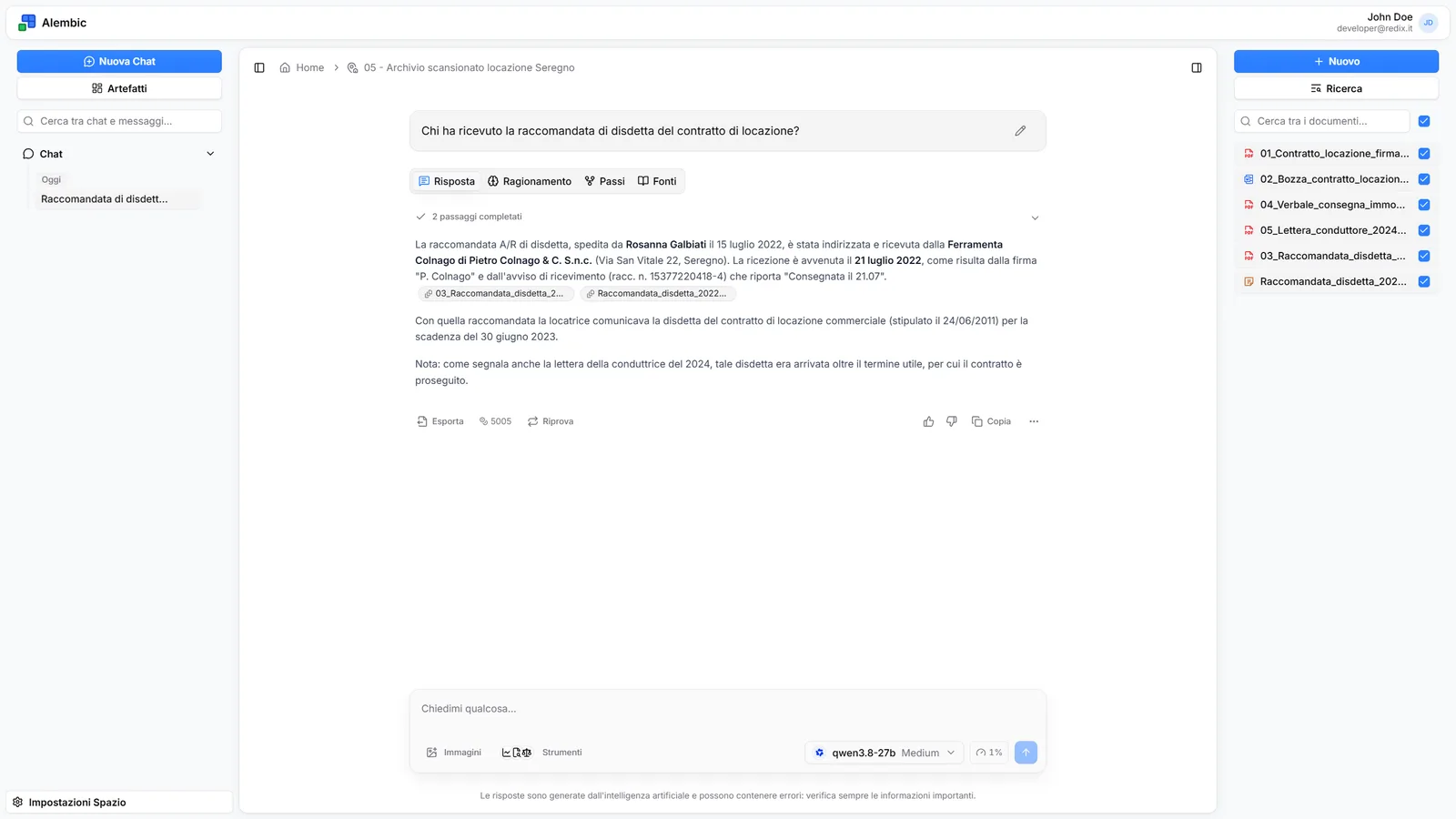
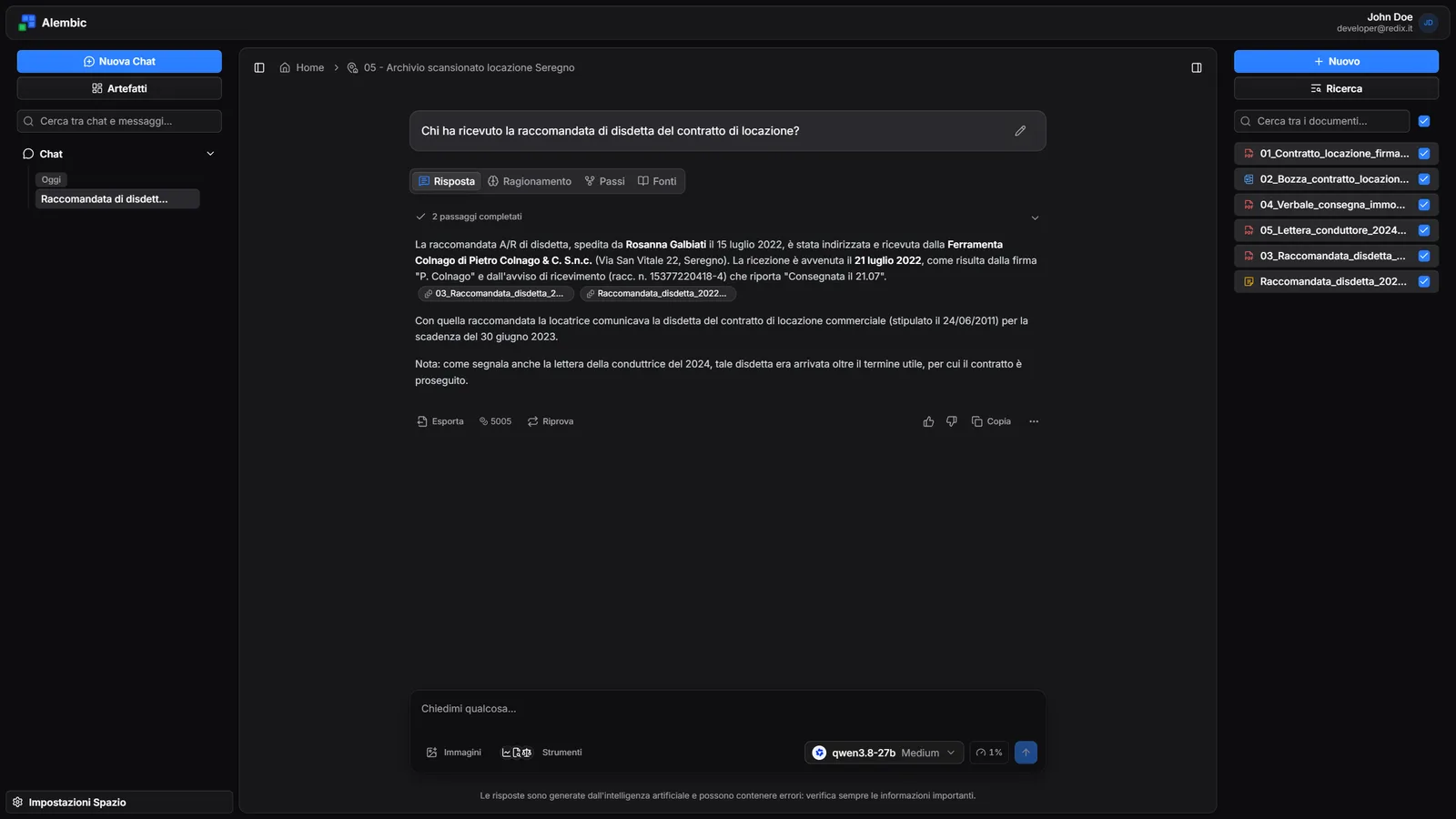
Every claim taken from a document names the document and the exact passage, one click away. If the answer is not in the documents, the assistant says so instead of making it up.
Choose the model for each conversation and how much it should reason before answering. If a better model comes out tomorrow, the configuration changes, not the product.
PDF, Word, PowerPoint, CSV, web pages and text. Scanned PDFs switch to OCR on their own, and a file uploaded again under the same name replaces the old one instead of duplicating it.
Sign in with your company account or the identity system you already have, with no new users to manage. The models run on our infrastructure or on yours.
While it answers you can see which tools it uses and with what parameters, the plan it has set itself and, for models that show it, the reasoning. Each panel can be hidden.
One space per client, per project or per subject: documents, folders and conversations stay together, and the assistant looks no further. You share it with a colleague or a whole group, and give each a role: owner, contributor or reader.
Select several files at once and a queue takes them through reading, summary and indexing, showing where each one has got to. Meanwhile the conversation already suggests the first questions to ask, written from those documents.
The space's search compares the sense of the question with the sense of each passage, so it finds the right passage even when it uses different words from yours. Every result shows the document, the section and how relevant it is, and opens highlighted inside the full document.
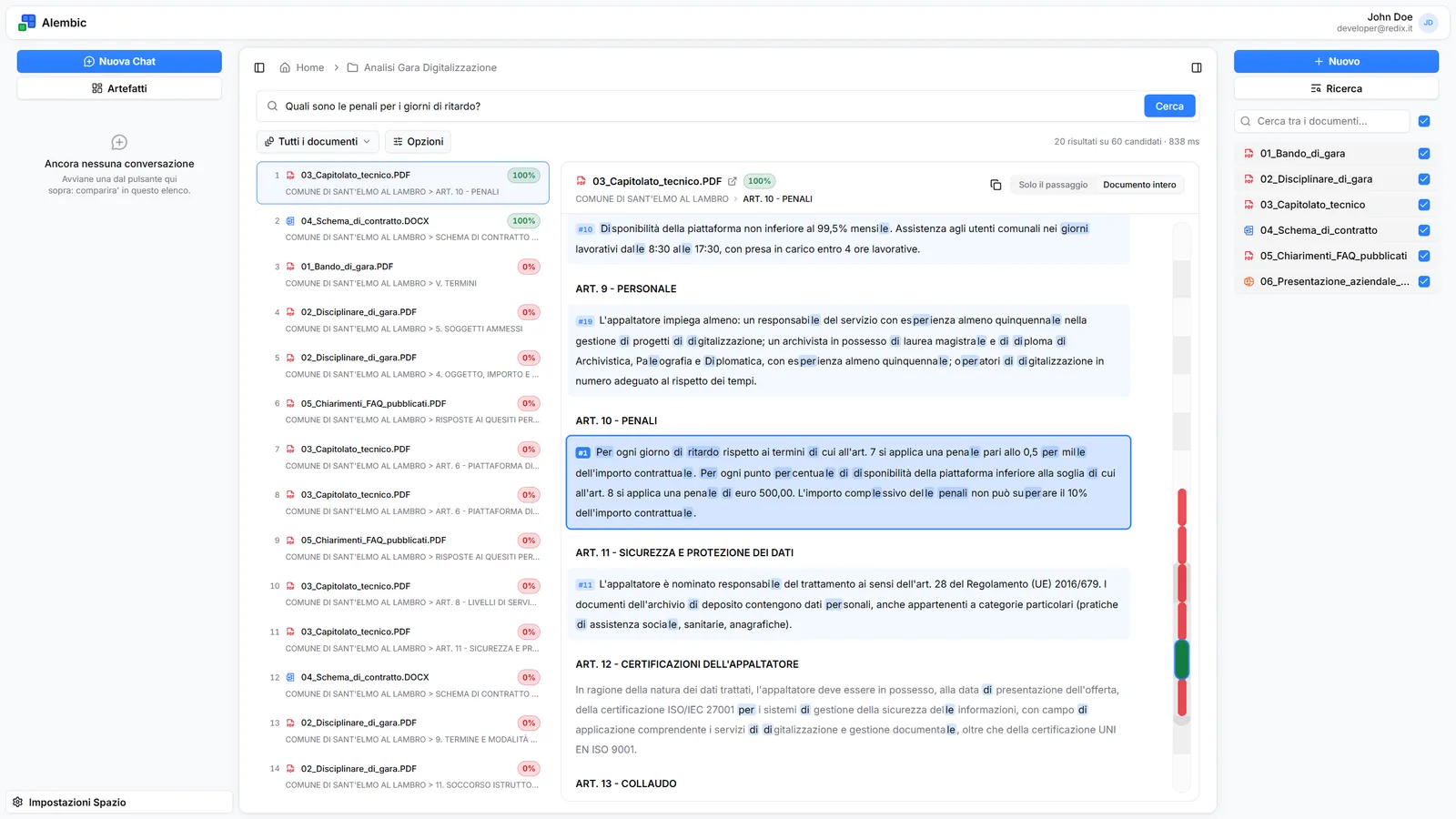
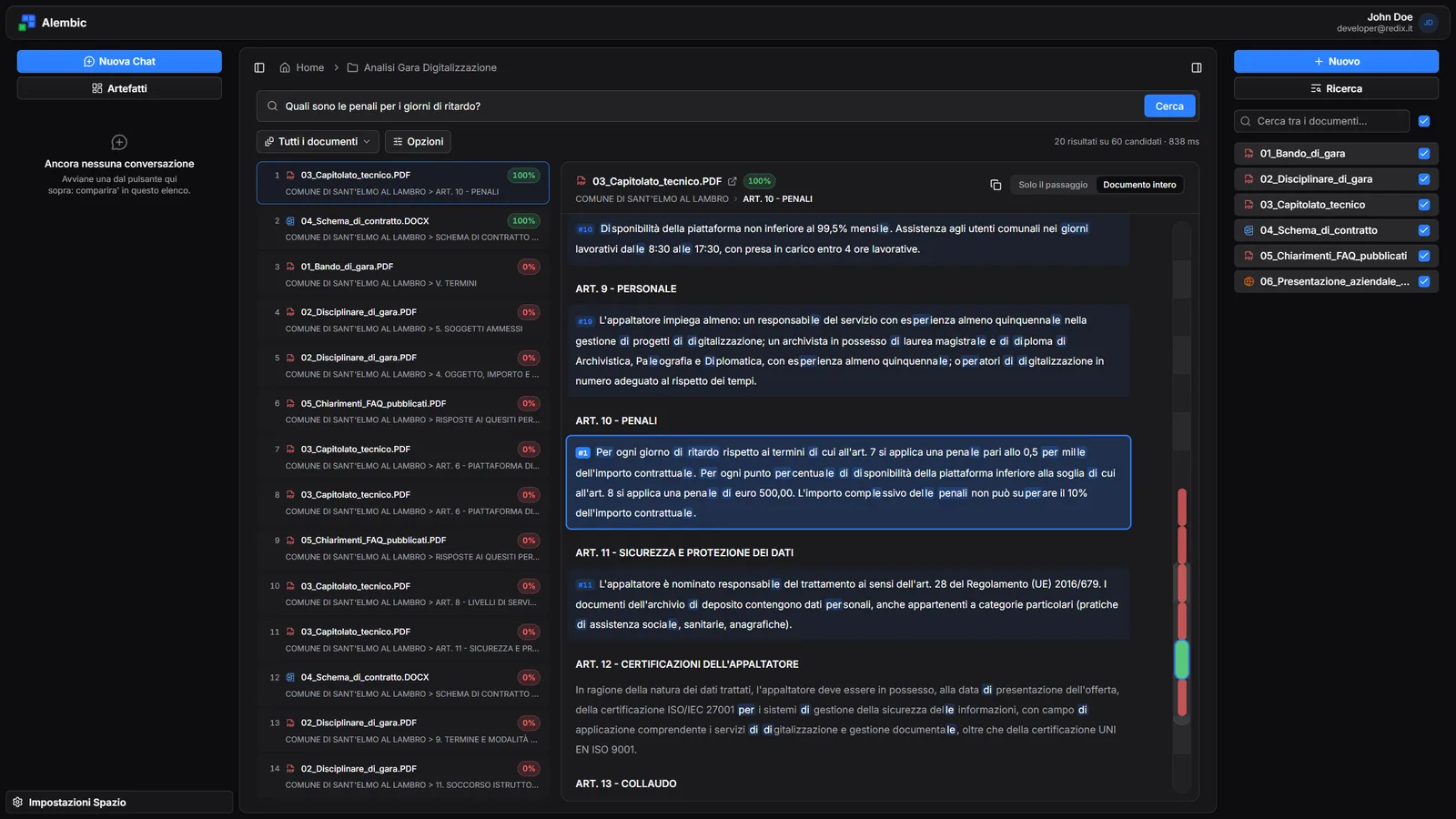
Faced with a question, the assistant decides by itself what it needs: consulting the documents, comparing them, searching for an exact term or running a calculation. It combines the tools until the task is done, and the steps it took stay visible above the answer, with citations beside every claim.
When a request has several independent parts, the assistant splits it and hands each one to a sub-agent, which works through it on its own over the documents in the space. The sub-agents work in parallel, each with its own status on screen, and at the end the assistant puts the results together in a single answer.
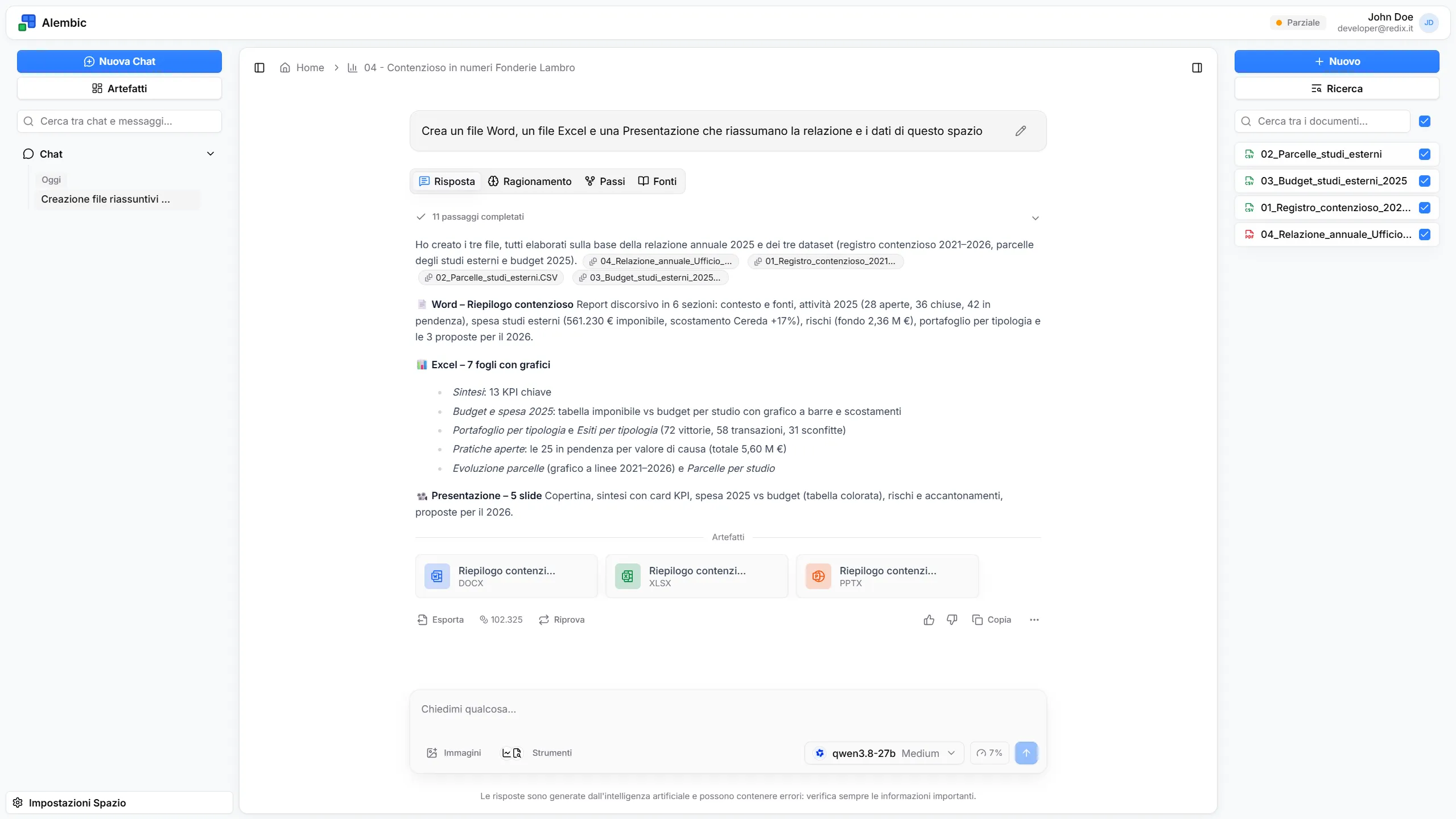
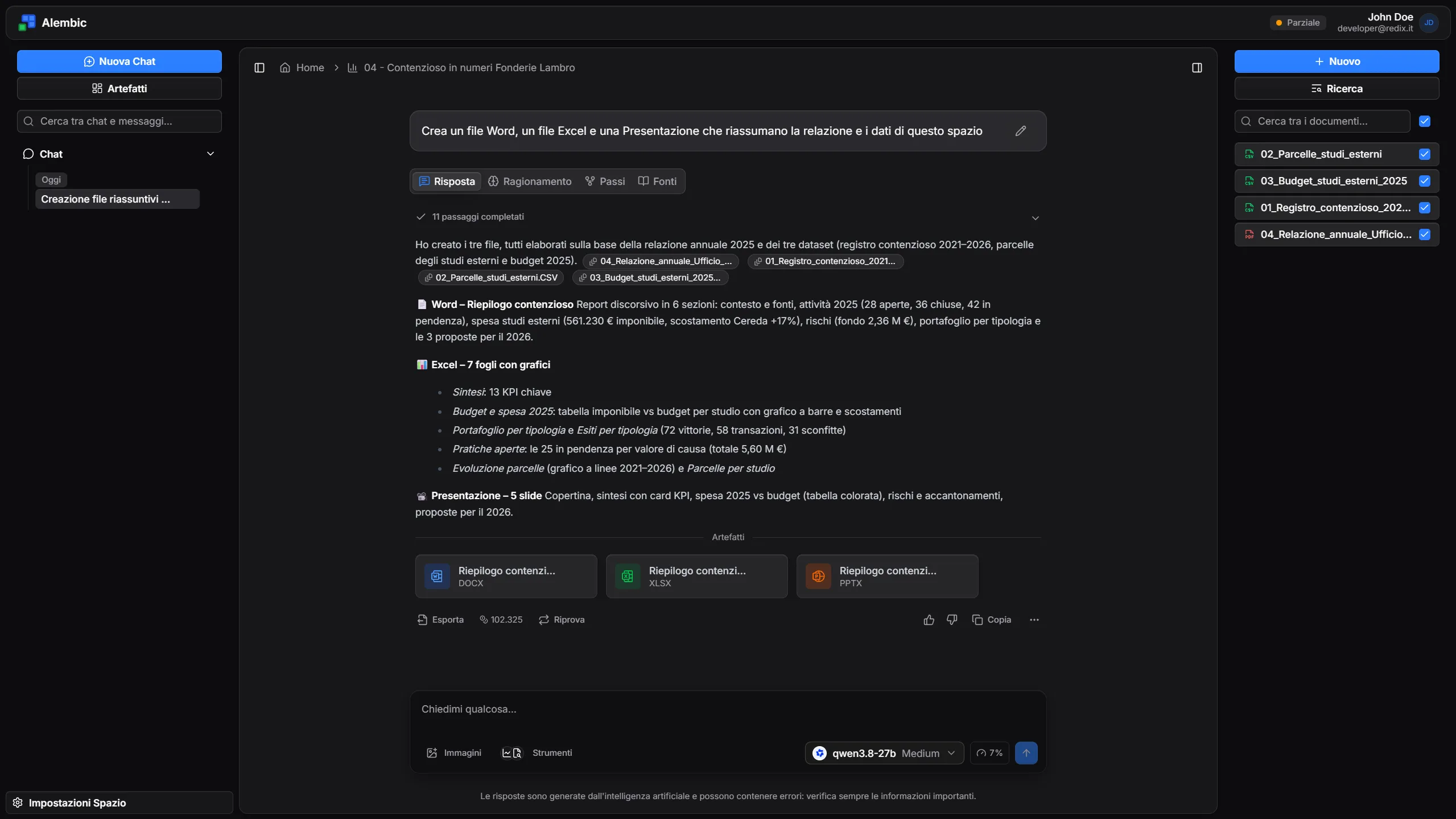
Ask for a report in Word, an Excel workbook with charts or a presentation, and the assistant builds them from the documents and data in the space. The files stay among the artifacts, with a preview that opens without leaving Alembic.
Models
Alembic is not tied to one model or one vendor. For each conversation you choose among the enabled models, from different providers too, and how much they should reason. If a better model comes out tomorrow the configuration is updated, and spaces, documents, tools and conversations stay where they are.
Tools & MCP
Faced with a request, the assistant decides by itself which tools to use and in what order, and when the task is long it first writes a plan and ticks it off as it goes. We built the tools on the Model Context Protocol while the standard was still young, because adding one should not mean rebuilding the product.
Two versions of a contract, the draft and the final, this year's policy and last year's: what was added, what was removed and how alike they are. Layout differences are ignored.
When certainty matters, it finds every occurrence of a code, a VAT number or a legal reference, with the surrounding text and the line number.
On spreadsheets the assistant does not estimate: it runs the calculation in an isolated environment. Totals, averages, groupings and joins between tables come back right, not just plausible.
Searches acts, reads an article cited the way a professional would cite it ("art. 615-ter c.p."), traces the amendments an act has gone through and shows the text as it stood on a given date.
If a request is ambiguous, say "summarise the contract" with three contracts in the space, the assistant asks which one and then picks up where it left off.
The result becomes a formatted PDF, a Word document, an Excel workbook or a presentation, kept among the space's artifacts. A process, a timeline or an org chart can come back as a diagram instead of in words.
Under the hood
Much of an answer's quality is decided at upload, before anyone asks a question: how the document is read, how it is summarised, where it is cut. That is where we put most of the work, and each phase shows its progress on screen while it runs.
The file is opened and turned into text. If it is a PDF made of images, such as a scan or a photo taken with a phone, Alembic switches to optical character recognition by itself.
PDF · DOCX · PPTX · web · automatic OCR
A model writes a summary of each document. That is what the assistant reads to decide which document to open, instead of opening all of them.
Per-document summary · source selection
The text is split along the structure of the document, by section rather than every so many characters, and each block is indexed by meaning.
Section-aware splitting · semantic index · CSV checks
The assistant picks the tools it needs, searches, reads only the useful parts and answers citing the exact passage each piece of information came from.
Up to 25 steps · pinpoint citations · visible steps